How to send CloudWatch alarms to Slack?
Andreas Wittig – 17 Nov 2026
You have created CloudWatch alarms for your databases, queues, and load balancers. When one of them switches from OK to ALARM, SNS sends an e-mail. That e-mail lands in a shared inbox next to newsletters and billing reports, and by the time someone reads it, your customers have already noticed. Your team talks in Slack all day, so that’s where CloudWatch alarms belong.

This blog post teaches you how to send CloudWatch alarms to Slack. You will learn why SNS can’t post to Slack on its own, how to use Amazon Q Developer in chat applications (formerly AWS Chatbot), how to build your own integration with an EventBridge rule, a Lambda function, and a Slack incoming webhook, and what a team needs beyond a message in a channel.
Are you looking for a managed solution?
marbot sends all CloudWatch alarms to Slack or Microsoft Teams. You also get alert deduplication, escalation, and runbooks.
- Add marbot to Slack or Microsoft Teams.
- Invite marbot to a channel.
- Follow the setup wizard in the channel.
Invite your team members to the channel.
Why SNS can’t send alarms to Slack directly
A CloudWatch alarm notifies an SNS topic, and SNS supports HTTPS subscriptions. So why not subscribe a Slack webhook to the topic? Two reasons:
- Subscription confirmation. SNS sends a confirmation request to every new HTTPS endpoint and waits until the endpoint visits the confirmation URL. A Slack webhook never does that, so the subscription stays pending.
- Message format. SNS posts its own JSON envelope with the alarm as an escaped string inside. A Slack incoming webhook expects a JSON object with a
textfield (or Block Kitblocks) and rejects everything else.
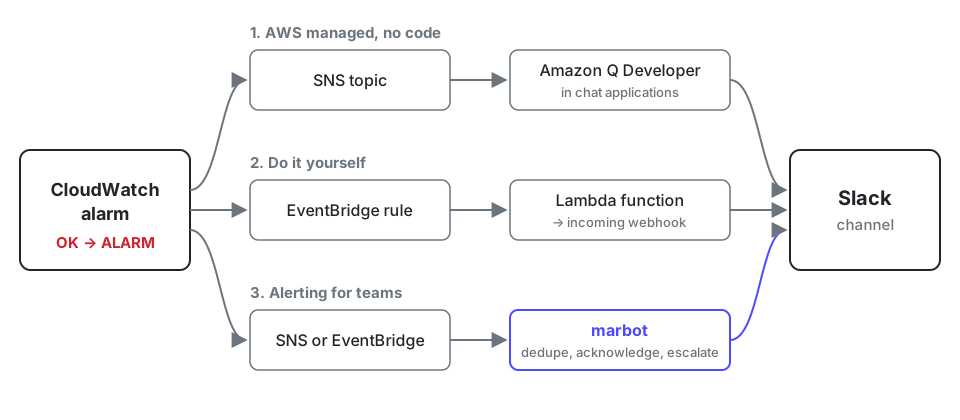
That’s why you need something in between that understands both sides. The following figure shows three options to connect a CloudWatch alarm with a Slack channel.
Option 1: Amazon Q Developer in chat applications
AWS offers its own Slack integration. It used to be called AWS Chatbot and was renamed to Amazon Q Developer in chat applications in February 2025. The chat features you know from AWS Chatbot don’t need an Amazon Q Developer subscription. Setting it up takes a few minutes:
- Open the Amazon Q Developer in chat applications console and configure Slack as a new client. Slack asks you to authorize the app for your workspace.
- Configure a new channel: pick the Slack channel, choose an IAM role, and select the SNS topics that should be delivered to the channel. For a private channel, invite the app to the channel first.
- Use the same SNS topic as the alarm action of your CloudWatch alarms.
From now on, each state change of an alarm shows up as a formatted message in Slack, including a graph of the metric. As infrastructure as code, the channel configuration is the CloudFormation resource AWS::Chatbot::SlackChannelConfiguration. Only the authorization of the Slack workspace must be done once in the console.
This works well for a single team with a few alarms. But every alarm notification is just a message. Nobody acknowledges it, nobody gets escalated to when nobody reacts, and ten alarms from the same flapping metric produce ten messages. We compared the features in detail in AWS Chatbot versus marbot.
Option 2: EventBridge, Lambda, and a Slack incoming webhook
If you want full control over the message, build the integration yourself. You don’t even need an SNS topic: CloudWatch sends an event with the detail type CloudWatch Alarm State Change and the source aws.cloudwatch to the default event bus of Amazon EventBridge whenever an alarm changes its state. One EventBridge rule catches the state changes of all alarms in a region, without touching the alarm actions of existing alarms.
You need the following components:
- An EventBridge rule that matches state changes to
ALARMandOK. - A Lambda function that turns the event into a Slack message.
- A Slack incoming webhook that delivers the message to your channel.
Create the Slack incoming webhook
- Go to api.slack.com/apps and create a new app from scratch for your workspace.
- Open Incoming Webhooks and switch the feature on.
- Click Add New Webhook to Workspace, select the channel for your alarms, and allow access.
- Copy the webhook URL. It starts with
https://hooks.slack.com/services/.
Treat the webhook URL like a password: anyone who knows it can post to your channel.
Deploy the EventBridge rule and the Lambda function
The following CloudFormation template creates the rule, the function, and the permissions. The Python code uses the standard library only, so there is nothing to package.
AWSTemplateFormatVersion: '2010-09-09' |
Deploy the stack with the AWS CLI and replace <WEBHOOK_URL> with the URL you copied from Slack:
aws cloudformation deploy \ |
You don’t have to wait for a real incident to test the integration. Set an existing alarm to ALARM for a moment; CloudWatch switches it back on the next evaluation:
aws cloudwatch set-alarm-state \ |
A few things to keep in mind:
- EventBridge rules are regional. Deploy the stack to every region where you have alarms, and to every AWS account.
- The webhook URL is visible to everyone who can read the Lambda configuration. For production, store it in AWS Secrets Manager and read it at runtime.
- Noisy alarms stay noisy. To get fewer, better alarms, combine metrics with metric math.
We published the same approach for Microsoft Teams in How to send CloudWatch alarms to Microsoft Teams?.
What a message in a channel doesn’t solve
Both options get the alarm into Slack. But a message alone doesn’t make sure somebody fixes the problem:
- Nobody feels responsible. Everyone sees the message, everyone assumes somebody else is on it.
- Alarms flap. A metric that hovers around the threshold sends
ALARM,OK,ALARM, and buries the channel. - The context is missing. The message tells you which alarm fired, not what to check first.
That’s why marbot treats a CloudWatch alarm as an alert that somebody owns. Team members acknowledge and close alerts, and when nobody reacts, marbot escalates: first with @here, after five minutes with @channel, or to individual users if you enable it. When the alarm switches back to OK, marbot closes the related alert automatically. Similar events are aggregated into one alert instead of flooding the channel.
On top of that, you don’t have to create the alarms yourself. The Monitoring Assistant creates CloudWatch alarms and EventBridge rules for services like EC2, RDS, SQS, ALB, and ECS in each AWS account and region you connect. Read Getting Started to learn how to install marbot for Slack.
Monitoring Assistant
No Lambda function, no webhook, no maintenance. Receive CloudWatch alarms in Slack or Microsoft Teams, with escalation and deduplication!It couldn't be easier!
- Add marbot to Slack or Microsoft Teams.
- Invite marbot to a channel.
- Follow the setup wizard.
Questions about sending CloudWatch alarms to Slack? Reach out to hello@marbot.io. Keep your systems up and running!
Take your AWS monitoring to a new level! Chatbot for AWS Monitoring: Configure monitoring, escalate alerts, solve incidents.