CloudWatch metrics and alarms reloaded: periods, statistics, and alarm examples
Michael Wittig – 26 Mar 2020 (updated 17 Nov 2026)
Amazon CloudWatch improved significantly over the years. It’s time to look at its monitoring capabilities again. CloudWatch is an excellent starting point to implement enhanced monitoring on AWS. Most teams use only a fraction of it: an alarm on CPUUtilization with the default settings, which either fires on every short spike or stays silent while a metric stops reporting. In this blog post, I demonstrate what you can do with CloudWatch metrics and alarms. Metrics provide a time-series database for telemetry (e.g., CPU utilization of an EC2 instance). Alarms watch a metric and trigger actions if a threshold is reached.

In the following, you will learn how CloudWatch stores and aggregates metrics, how alarms evaluate them (periods, M out of N, missing data, anomaly detection), how to alarm on many resources with one query, and how to define an alarm with CloudFormation.
Do you prefer listening to a podcast episode over reading a blog post? Here you go!
Metrics
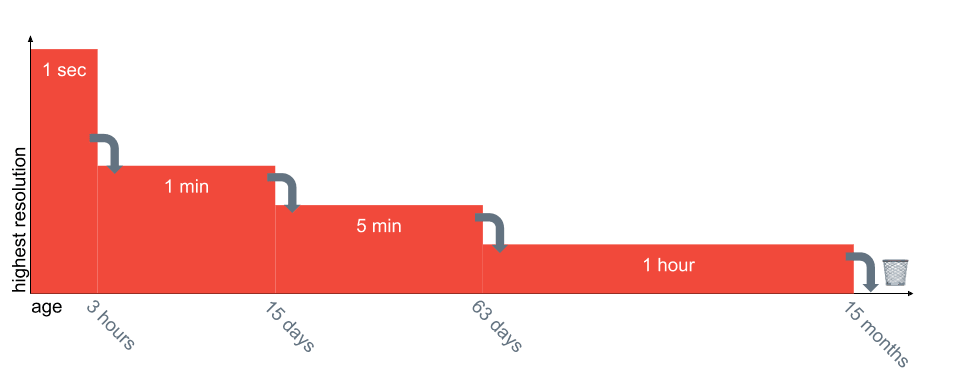
A metric is identified by a namespace (e.g., AWS/EC2), a metric name (e.g., CPUUtilization), and up to 30 dimensions (e.g., InstanceId). A metric stores your telemetry data for 15 months. The highest resolution is one second (high-resolution custom metrics). The resolution of the data is automatically reduced over time, as described in Metrics concepts:
- Data points with a period of less than 60 seconds are available for 3 hours.
- Data points with a period of 60 seconds (1 minute) are available for 15 days.
- Data points with a period of 300 seconds (5 minutes) are available for 63 days.
- Data points with a period of 3600 seconds (1 hour) are available for 15 months.
The following figure demonstrates how the resolution is reduced over time.
Let me give you an example: If you have data points with a 1-minute resolution that become older than 15 days, CloudWatch will combine 5 data points into one as the following tables show:
| Time | Value |
|---|---|
| 08:09 | 81 |
| 08:08 | 39 |
| 08:07 | 32 |
| 08:06 | 36 |
| 08:05 | 31 |
The result is no longer a table of raw values, instead; CloudWatch stores statistics to describe the values:
| Time | Samples | Min | Max | Sum |
|---|---|---|---|---|
| 08:09 | 5 | 31 | 81 | 219 |
You can compute time window statistics (aka aggregations) over your metric data. The following statistics are supported: Average, Minimum, Maximum, Sum, SampleCount, percentiles (e.g., p99), and trimmed or winsorized means (e.g., tm99, wm99). Percentiles are the best fit for latencies: an average hides the slow requests your users complain about. Let me give you an example. The following data is stored in CloudWatch.
| Time | Value |
|---|---|
| 10:17 | 84 |
| 10:16 | 73 |
| 10:15 | 90 |
| 10:14 | 85 |
| 10:13 | 74 |
| 10:12 | 83 |
| 10:11 | 45 |
| 10:10 | 65 |
| 10:09 | 81 |
| 10:08 | 39 |
| 10:07 | 32 |
| 10:06 | 36 |
| 10:05 | 31 |
| 10:04 | 45 |
| 10:03 | 56 |
| 10:02 | 71 |
Let me give you an aggregation example: for all values between 10:05 (inclusive) and 10:15 (exclusive), look at 5 minute time windows (aka period), and compute the maximum.
| Time Window | Values |
|---|---|
| [10:10, 10:15[ | 65, 45, 83, 74, 85 |
| [10:05, 10:10[ | 31, 36, 32, 39, 81 |
The result will look like this:
| Time Window | Maximum |
|---|---|
| [10:10, 10:15[ | 85 |
| [10:05, 10:10[ | 81 |
Metric math allows you to combine multiple metrics. For example, we have covered the following use cases in our blog already:
- Monitoring EC2 Network Utilization
- Combine CloudWatch metrics for Auto Scaling or to reduce costs
- Monitoring error metrics
Most AWS Services (e.g., EC2, RDS, and many more) report telemetry data to CloudWatch Metrics out of the box. On top of that, you can also send your own data (aka custom metric).
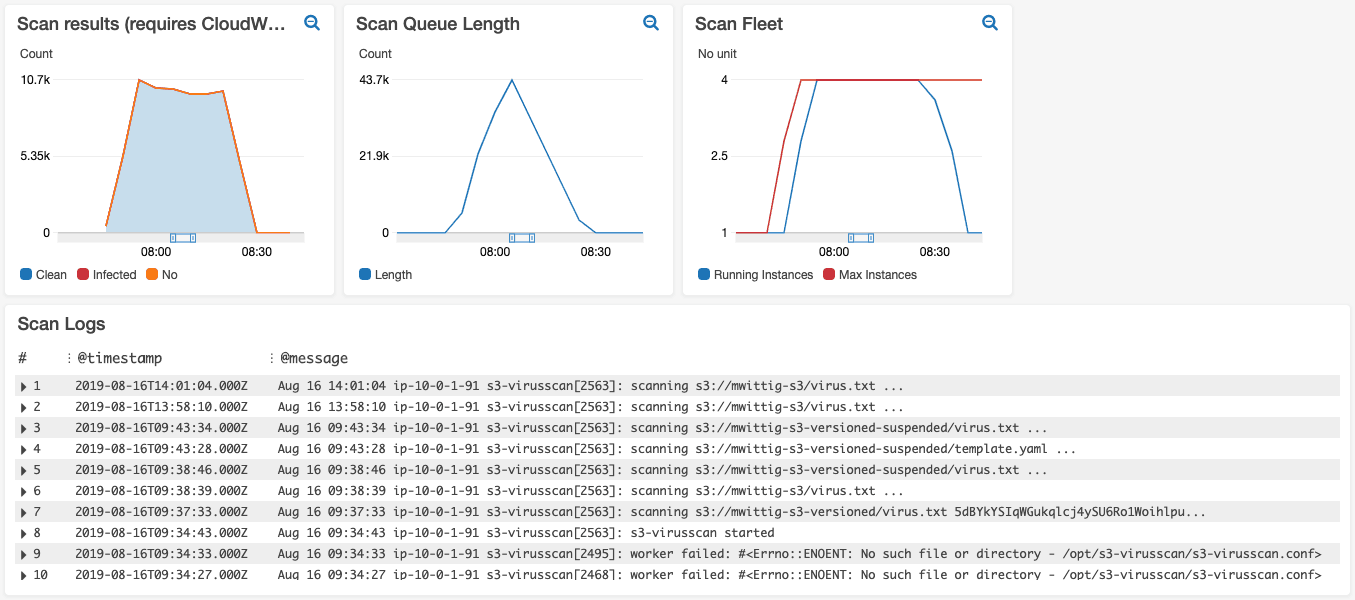
Last but not least, creating dashboards that show multiple metrics in one place is a handy feature. The following figure shows a CloudWatch dashboard of our product bucketAV - Antivirus for Amazon S3.
Alarms
A metric alarm continually runs an aggregation over the latest period(s) and checks the result against a threshold. A composite alarm continually checks the states of other alarms.
Composite alarms are charged on top of the metric alarms they watch (see CloudWatch pricing). If all you want is to combine metrics, use metric math instead.
An alarm can be in three states:
OK: Threshold is not reachedALARM: Threshold is reachedINSUFFICIENT_DATA: No data available
Whenever the state of an alarm changes, it can trigger actions:
- Send a message to an SNS topic
- Invoke a Lambda function
- Execute an EC2 Auto Scaling action
- Stop, terminate, reboot, or recover an EC2 instance
- Create an OpsItem in Systems Manager OpsCenter or an incident in Incident Manager (state
ALARMonly)
You can configure how an alarm treats missing data (TreatMissingData):
notBreaching: treat it as good, within the thresholdbreaching: treat it as bad, breaching the thresholdignore: keep the current alarm statemissing(default): go to stateINSUFFICIENT_DATAif all data points in the evaluation range are missing
Pick the option per metric. Some metrics report data only when something happens, e.g., DynamoDB ThrottledRequests: no data means no throttling, so notBreaching is the right choice. For a heartbeat-style custom metric, silence means trouble: use breaching.
A simple alarm could be:
If the average CPU utilization over the last 5-minutes period is greater than 80, then send a message to an SNS topic.
| placeholder | value |
|---|---|
| statistic | average |
| metric | CPUUtilization |
| period | 5 minutes |
| comparator | greater than |
| threshold | 80 |
| action | send a message to an SNS topic |
Formula: If the $statistic $metric over the last $period period is $comparator $threshold, then $action.
To make alarms more stable, you can also look at the last N periods instead of only the last period:
If the average CPU utilization over the last 3 5-minutes periods is greater than 80, then send a message to an SNS topic.
| placeholder | value |
|---|---|
| statistic | average |
| metric | CPUUtilization |
| period | 5 minutes |
| evaluation-periods | 3 |
| comparator | greater than |
| threshold | 80 |
| action | send a message to an SNS topic |
Formula: If the $statistic $metric over the last $evaluation-periods $period periods is $comparator $threshold, then $action.
Less prone to short spikes is the usage of M out of N logic (datapoints to alarm M out of evaluation periods N):
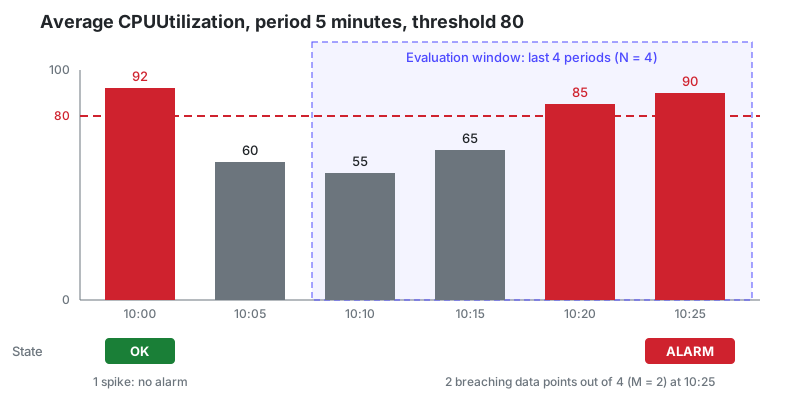
If the average CPU utilization over the last 4 5-minutes periods is greater than 80 for at least 2 times, then send a message to an SNS topic.
| placeholder | value |
|---|---|
| statistic | average |
| metric | CPUUtilization |
| period | 5 minutes |
| evaluation-periods | 4 |
| datapoints-to-alarm | 2 |
| comparator | greater than |
| threshold | 80 |
| action | send a message to an SNS topic |
Formula: If the $statistic $metric over the last $evaluation-periods $period periods is $comparator $threshold for at least $datapoints-to-alarm times, then $action.
The following figure shows the 2 out of 4 alarm in action: a single spike does not trigger the alarm, but the second breaching data point within the last four periods does.
One problem with the approach so far is that you have to set the threshold. With anomaly detection, CloudWatch will train a model to predict the expected band of values based on the past. The model trains on up to two weeks of metric data. It is aware of trends and hourly, daily, and weekly patterns. You can exclude time periods, like an outage or a load test, from training. Keep in mind that anomaly detection only compares the present with the past two weeks. If your latency is worse every evening, that will just look fine for anomaly detection.
Alarms for many resources: Metrics Insights queries
Creating one alarm per EC2 instance, RDS database, or SQS queue does not scale, and every new resource needs a new alarm. A CloudWatch alarm can also evaluate a Metrics Insights query that returns multiple time series. The GROUP BY clause defines one time series per resource, and each time series is a contributor with its own state. The alarm goes into ALARM as soon as one contributor breaches the threshold. For example, the following query watches the database connections of all RDS instances in a region:
SELECT AVG(DatabaseConnections) FROM "AWS/RDS" GROUP BY DBInstanceIdentifier |
Check the alarm limits before you rely on this for large fleets: the number of contributors in state ALARM and the number of time series a query may return are limited.
Alarm example: CloudFormation
The following CloudFormation template creates the 2 out of 4 alarm from above for an EC2 instance and sends notifications to an SNS topic. The OKActions notify you when the problem is gone as well.
AWSTemplateFormatVersion: '2010-09-09' |
Which alarms does an EC2 instance need besides CPU utilization? Read Monitor EC2 instances with CloudWatch metrics and alarms to learn more.
Send CloudWatch alarms to Slack or Microsoft Teams
An alarm that sends an e-mail to a shared inbox is an alarm nobody reads. Alerts belong where your team already talks: in Slack or Microsoft Teams. marbot receives the alarm notifications from your SNS topic, posts them to a channel, and escalates alerts that nobody acknowledges. Even better, the Monitoring Assistant creates CloudWatch alarms and EventBridge rules for the AWS services you use, so you don’t have to write a template for every resource. Want to do it yourself? Read How to send CloudWatch alarms to Microsoft Teams?.
Monitoring Assistant
Bored of creating CloudWatch alarms? Ask marbot to do it for you, and receive alerts in Slack or Microsoft Teams!It couldn't be easier!
- Add marbot to Slack or Microsoft Teams.
- Invite marbot to a channel.
- Follow the setup wizard.
Summary
CloudWatch metrics and alarms are getting more powerful every year. Data can be tracked at a 1-second resolution and is stored for 15 months. Percentiles are an excellent fit to monitor latencies. Metric math provides rich capabilities to work with multiple metrics at once.
Composite alarms group multiple alarms together (easy, but more expensive than metric math). With the M out of N logic, you can ensure that your alarms can better deal with short spikes. Choose the missing data treatment per metric. Anomaly detection can replace a static threshold, and Metrics Insights queries let one alarm watch a whole fleet of resources.
Take your AWS monitoring to a new level! Chatbot for AWS Monitoring: Configure monitoring, escalate alerts, solve incidents.